What it does #
SEO is the work of helping Google, Bing and other search engines find your pages, understand them and show them to the right people. VuloPilot’s SEO tools do three things:
- Check your site for problems that hurt your search results, and give you a score.
- Set up the things search engines look for: page titles, sitemaps, redirects and more.
- Guide you page by page while you write, with a panel inside the post editor.
Why it matters #
Most visitors arrive from a search engine. If your titles are missing, your pages cannot be found, or old links lead nowhere, people never reach you. Fixing these basics is usually the cheapest way to get more visitors.
New to VuloPilot? See GETTING-STARTED for installation and the first scan.
Where to find things #
| You want to… | Go to |
|---|---|
| See your SEO score and problems | VuloPilot → SEO & Visibility → SEO |
| Set how page titles look | Settings → SEO → SEO Titles |
| Set up your sitemap | Settings → SEO → Sitemap |
| Tell search engines about new pages instantly | Settings → SEO → Instant Indexing |
| Choose which problems VuloPilot looks for | Settings → Scanning → SEO & Content |
| Manage redirects, missing pages and robots.txt | SEO & Visibility → Crawl & URLs |
| Prove you own your site to Google or Bing | Settings → Integrations → Webmaster Tools |
| Edit one page’s SEO | The VuloPilot SEO panel in the post editor |
1. Your SEO score and problems #
What it does. After a scan, the SEO tab shows an overall score and lists problems in six groups.
Why it matters. It tells you exactly what to fix, in order of importance, so you are not guessing.
How to use it.
- Run a scan (Dashboard → Run scan).
- Open SEO & Visibility → SEO.
- Read the Overall Score and how many issues are critical or high priority.
- Open a group, read each problem and its advice, fix it, then scan again.

| Group | Plain-English meaning |
|---|---|
| Titles & Meta | Are page titles and short descriptions present, the right length and different on every page? |
| Content Structure | Are headings in a sensible order, and are pages long enough to be useful? |
| Images | Do images have a description (alt text), and do important pages have a main image? |
| Internal Linking | Do your pages link to each other so visitors and search engines can move around? |
| Indexability & Canonicals | Are there duplicate pages, or pages nothing links to? |
| Structured Data | Do pages carry the information social sites and search engines use for previews? |
Choose which problems VuloPilot looks for #
Go to Settings → Scanning → SEO & Content. Every switch below decides whether that problem is reported in your scan.
| Setting | What it does | Why you might use it |
|---|---|---|
| Flag orphan pages | Reports pages that no other page links to | Visitors and search engines struggle to find these pages |
| Thin content threshold (words) | Reports pages with fewer words than this (default 300) | Very short pages rarely rank well |
| Flag missing meta descriptions | Reports pages with no short summary for search results | The summary is what people read before clicking |
| Flag duplicate title tags | Reports pages that share the same title | Each page should have its own title so search engines can tell them apart |
| Flag missing alt text | Reports images with no description | Helps blind visitors and helps image search |
| Flag broken images | Reports images that fail to load | Broken images make a site look neglected |
| Flag missing featured images | Reports posts and pages with no main image | Pages with a main image look better when shared |
| Flag broken internal links | Reports links to pages that no longer exist | Dead links frustrate visitors |
| Add canonical URL tags | Adds a tag that tells search engines which address is the “official” one for a page | WordPress already does this; turn it on only if the scan says the tags are missing |
| Add Open Graph & Twitter Card tags | Adds the information used for previews when your page is shared on social sites | Gives you a proper title, description and picture when shared |
| Minimum readability score | Reports posts that are hard to read (default 50; higher is easier) | Easy text keeps visitors reading |

2. Page titles and descriptions (SEO Titles) #
What it does. A page title is the clickable headline you see in search results. SEO Titles lets you set one pattern for each kind of page so every page gets a good title automatically.
Why it matters. The title is the first thing a searcher reads. A clear, consistent title gets more clicks.
How to use it. Go to Settings → SEO → SEO Titles.
- Turn on Custom title formats.
- Choose a Separator, the small symbol between parts of the title, for example
Post title | Your site. - Under Title & Description Format Templates, click Edit on a row: Homepage, Blog Post, Page, Category, Tag, Search Results or Archive.
- Build the pattern with the variables in the table below.
- Watch the length indicator: Too short, Good or Too long. Search engines cut off long titles.
- Save.
| Variable | Becomes |
|---|---|
%site_title% | Your website name |
%site_description% | Your website tagline |
%post_title% / %page_title% | The name of the post or page |
%category_title% / %tag_title% | The name of the category or tag |
%search_term% | What the visitor searched for |
%archive_title% | The archive name |
%sep% | Your chosen separator |
Example: %post_title% %sep% %site_title% becomes Best Running Shoes | My Shop. That is also the default for posts.
A title you type for one page in the post editor panel always wins over these patterns.

3. Sitemap #
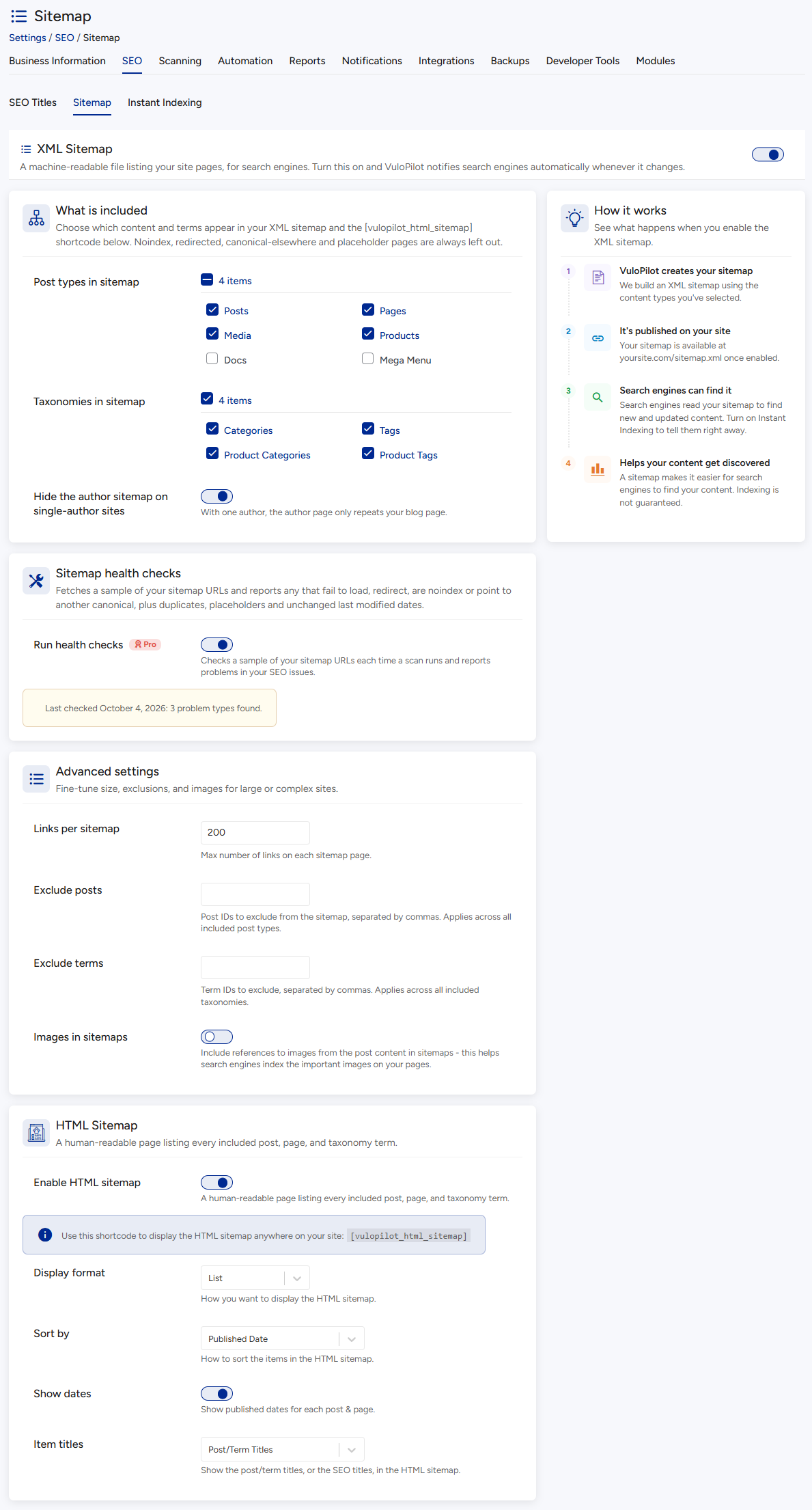
What it does. A sitemap is a list of all the pages you want search engines to know about. VuloPilot creates it and keeps it up to date. It also offers an HTML sitemap, a normal web page listing your content for visitors.
Why it matters. It helps search engines discover new and updated pages faster. Note that a sitemap makes finding your pages easier, but it does not guarantee they will appear in search results.
How to use it. Go to Settings → SEO → Sitemap.
- Switch XML Sitemap to Enabled. Your sitemap is at
yoursite.com/sitemap_index.xml, and search engines are told automatically when you publish or update something. - Under What is included, tick the content types and categories to list.
- Adjust Advanced settings only if you need to.
- To give visitors a sitemap page, turn on Enable HTML sitemap and put the shortcode
Posts #
- AI SEO: The Complete Guide to AI Search Optimization, GEO & AEO in 2027 October 23, 2026
- WordPress SEO: The Complete Guide to Improving Search Visibility in 2027 October 22, 2026
- WordPress Website Optimization: Complete Guide for 2027 September 26, 2026
Pages #
- Automation October 26, 2026
- Manual Website Management October 26, 2026
- Slow WooCommerce store October 26, 2026
- Website health issues October 26, 2026
- Website Security Issues October 26, 2026
- Poor search rankings October 26, 2026
- Low search traffic October 26, 2026
- Poor core web vitals October 26, 2026
- Pages not indexed October 26, 2026
- Not appearing in ai search October 26, 2026
- Website too slow October 26, 2026
- Website too slow October 26, 2026
- Not Showing On Google October 26, 2026
- Problems October 26, 2026
- Automate Website Management October 26, 2026
- Optimize WooCommerce October 26, 2026
- Optimize Website Content October 26, 2026
- Improve Website Security October 26, 2026
- Monitor Website Health October 26, 2026
- Improve Website Performance October 26, 2026
- Improve AI Visibility October 26, 2026
- Fix SEO Problems October 26, 2026
- Use Cases October 26, 2026
- WooCommerce Stores October 26, 2026
- Agencies October 26, 2026
- Marketers October 26, 2026
- Businesses October 26, 2026
- Website Owners October 26, 2026
- WordPress SEO October 26, 2026
- SEO Audit October 26, 2026
- Website Audit October 26, 2026
- AI Search Optimization October 26, 2026
- Generative Engine Optimization October 26, 2026
- Answer Engine Optimization October 26, 2026
- Website Performance October 26, 2026
- Core Web Vitals October 26, 2026
- WordPress Security October 26, 2026
- Website Health October 26, 2026
- WooCommerce SEO October 26, 2026
- Website Automation October 26, 2026
- VuloPilot vs SEO Tools October 26, 2026
- VuloPilot vs SEO Plugins October 26, 2026
- VuloPilot vs SEO tools October 26, 2026
- VuloPilot vs SEO Plugins October 26, 2026
- VuloPilot vs Manual SEO Audits October 26, 2026
- VuloPilot vs Google Lighthouse October 26, 2026
- VuloPilot vs Pagespeed Insights October 26, 2026
- VuloPilot vs Google Search Console October 26, 2026
- VuloPilot vs Surfer SEO October 26, 2026
- VuloPilot vs Ahrefs October 26, 2026
- VuloPilot vs Semrush October 26, 2026
- VuloPilot vs Screaming Frog October 26, 2026
- VuloPilot vs Jetpack October 26, 2026
- VuloPilot vs WordFence October 26, 2026
- VuloPilot vs WP Rocket October 26, 2026
- VuloPilot vs The SEO Framework October 26, 2026
- VuloPilot vs SEOpress October 26, 2026
- VuloPilot vs All-in-one-seo October 26, 2026
- VuloPilot vs RankMath October 26, 2026
- WooCommerce SEO October 26, 2026
- Content Optimization October 26, 2026
- Website Health October 26, 2026
- Website Security October 26, 2026
- Core Web Vitals October 26, 2026
- Website Performance October 26, 2026
- AEO October 26, 2026
- GEO October 26, 2026
- WordPres SEO October 26, 2026
- AI Search October 26, 2026
- Website Audit October 26, 2026
- Guides October 26, 2026
- Compare October 22, 2026
- Website Health Checklist October 22, 2026
- AI Search Optimization Checklist October 22, 2026
- Website Audit Checklist October 22, 2026
- Resources October 22, 2026
- SEO Checklist October 22, 2026
- Workflow Automation Features October 22, 2026
- Coming Soon October 16, 2026
- Core Web Vitals Checklist October 16, 2026
- SEO Checklist October 16, 2026
- Checklist October 16, 2026
- Solutions October 16, 2026
- WooCommerce October 16, 2026
- Website Health October 16, 2026
- Automations October 16, 2026
- Security October 16, 2026
- Performance October 16, 2026
- Content October 16, 2026
- AI Visibility October 16, 2026
- Features October 16, 2026
- For October 12, 2026
- How it works October 10, 2026
- Vulopilot October 9, 2026
- Request refund October 8, 2026
- VuloPilot vs Yoast SEO October 7, 2026
- AI Search October 7, 2026
- Terms & Condition September 30, 2026
- Search Visibility September 29, 2026
- Book a consultaion September 24, 2026
- Refund Policy September 2, 2026
- Support policy September 2, 2026
- Changelog September 2, 2026
- Support September 2, 2026
- About Us September 2, 2026
- Pricing September 2, 2026
- Latest Blog Updates, Tips, and Insights for Our Readers September 2, 2026
- Contact Us July 31, 2026
Categories #
| Setting | What it does | Why you might use it |
|---|---|---|
| Post types in sitemap | Which kinds of content are listed (Posts, Pages, Media, Products) | Leave out things you do not want found |
| Taxonomies in sitemap | Whether categories and tags are listed | Category pages can help discovery |
| Links per sitemap | How many links go in each sitemap file (default 200) | Rarely needs changing |
| Exclude posts / Exclude terms | Hide specific items by their ID number, separated by commas | Keep private or thank-you pages out |
| Images in sitemaps | Lists the images used in your content | Helps your pictures appear in image search |
| Include featured images | Also lists main images | Same as above |
| Display format / Sort by / Show dates / Item titles (HTML sitemap) | How the visitor sitemap looks and is ordered | Make it easy to read |
4. Instant Indexing #
What it does. Normally search engines discover changes only when they next visit, which can take days. Instant Indexing sends them a message the moment you publish, edit or delete a page, using a free system called IndexNow.
Why it matters. New and updated pages can show up in search results sooner.
How to use it. Go to Settings → SEO → Instant Indexing.
- If it says IndexNow needs a key, generate one. Then it shows IndexNow is connected. There is nothing else to manage.
- Under What should notify search engines automatically, tick the kinds of content that should trigger a message (default: Posts, Pages, Products).
- To announce specific pages by hand, paste their addresses (one per line, up to 10,000) into Submit specific URLs and click Submit URLs.
- Recent submissions shows your last 100 messages and whether each was accepted.

5. Redirects and missing pages #
What it does. A redirect sends visitors from an old address to a new one. The 404 log records every time someone landed on a page that does not exist.
Why it matters. When you rename or delete a page, the old address stops working. Visitors see an error and search engines lose the page’s ranking. A redirect keeps both.
How to use it.
- Go to Settings → Scanning → SEO & Content → Redirects and turn on what you need:
| Setting | What it does | Why you might use it |
|---|---|---|
| Enable redirect manager | Lets you create and manage redirects | Needed for everything below |
| Auto-create redirect on slug change | Automatically redirects the old address when you change a page’s web address | Changing a slug never breaks old links |
| Log 404s | Records visits to pages that do not exist | Shows you which broken links need a redirect |

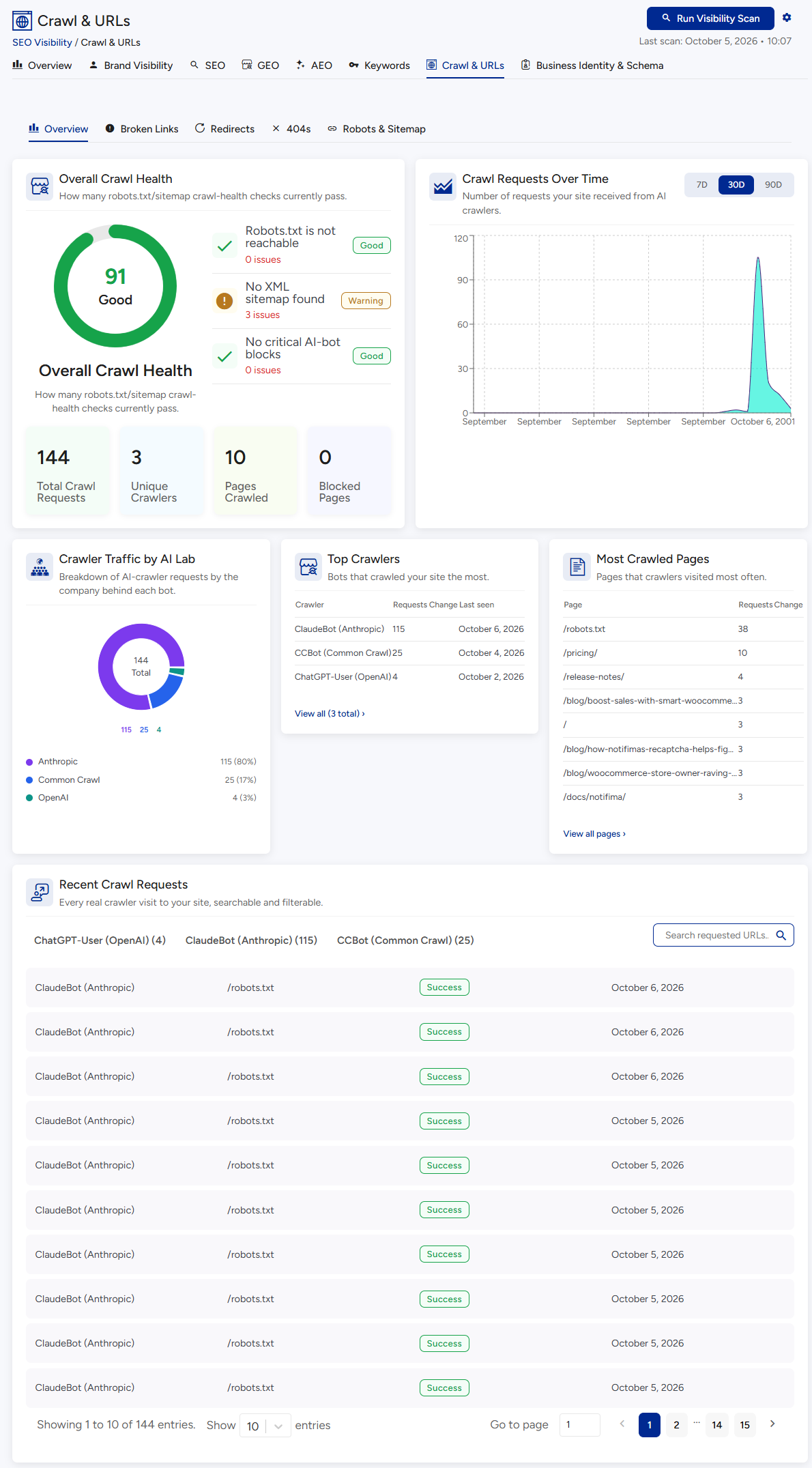
- Open SEO & Visibility → Crawl & URLs.
- Redirects: click Add redirect, enter the old address (like
/old-page/) and the new one (likehttps://example.com/new-page/), and save. You can edit, turn off or delete a redirect later. Redirect Health shows how many are working. - 404 Log: each entry shows the address people requested. Click Create redirect to fix it, or Dismiss if no fix is needed. Use the All / Content / System filter to hide noise from theme and plugin files.
6. robots.txt #
What it does. robots.txt is a small file that tells search engines and AI bots which parts of your site they may visit. VuloPilot shows your live file and lets you edit it.
Why it matters. A wrong rule can hide your whole site from search engines by mistake. VuloPilot warns you if that happens.
How to use it. Open SEO & Visibility → Crawl & URLs → Robots & Sitemap.
- Read the summary of allowed and blocked rules.
- Edit the file and save. Changes are live immediately. Use Test robots.txt to check it, or Reset to WordPress default to undo.
- Robots.txt Issues warns you if the file cannot be reached or blocks everything.
| Setting (in Scanning → SEO & Content) | What it does | Why you might use it |
|---|---|---|
| Auto-generate robots.txt | Adds a line pointing to your sitemap | Helps search engines find the sitemap |
| Flag pages blocked for specific AI crawlers | Reports pages that AI bots such as GPTBot and ClaudeBot are told to stay away from | Lets you decide whether that is what you want |

7. SEO for one page (the post editor panel) #
What it does. When you edit a post or page, open the VuloPilot SEO sidebar. It shows how the page will look in search results and checks it as you type.
Why it matters. You fix problems while writing, instead of finding them in a scan later.
| Tab | What it is for |
|---|---|
| General | See a live search preview. Click Edit Snippet to write the SEO Title and Meta Description (the short summary under the title in search results). Add a Focus Keyword, the main phrase you want the page found for. A checklist shows All Good, Could Be Better or Needs Improvement |
| Social | Choose the title, description and picture used when the page is shared on social sites. Empty fields use the SEO title, the description and the featured image |
| Schema | Structured data that helps search engines understand the page. For advanced users |
| Advanced | Set a Canonical URL (the official address; leave empty normally). Tick No Index to keep the page out of search results, or No Follow to tell search engines not to follow its links |
| Page Analysis | Shows this page’s current SEO issues |
8. Table of Contents and FAQ blocks #
What they do. Two ready-made blocks you can add from the block inserter under Widgets.
- Table of Contents builds a clickable list of the page’s headings. Options: a title, which heading levels to include, and whether it can be collapsed.
- FAQ shows a list of questions and answers, and also tells search engines about them, which can earn a richer result.
Why use them. Readers jump straight to what they need, and FAQs can win more space in search results.
9. Prove you own your site (verification) and connect Google #
What it does. Search engines want proof that you own a site before they show you private data. Go to Settings → Integrations.
- Webmaster Tools: paste the code Google, Bing, Pinterest, Baidu, Yandex or Norton Safe Web gives you, then click Verify.
- Google Services: connect your Google account to see Search Console, Analytics and AdSense information inside VuloPilot. VuloPilot only reads the data and stores it on your own site.
- Tag Manager: enter your container ID (looks like
GTM-XXXXXXX) to add Google Tag Manager.
Why it matters. Verified sites get accurate search data, which VuloPilot uses to give better advice. If you turn on Analytics or Tag Manager, Google scripts load on your site, so tell visitors as your privacy rules require.
Common questions #
Where is my sitemap? At yoursite.com/sitemap_index.xml once the XML Sitemap is enabled.
A page still shows an old title. A title set in the post editor panel overrides the patterns. Clear it there to use the pattern.
Will this guarantee top rankings? No. VuloPilot fixes the technical and content problems search engines look at, but no tool can guarantee a ranking or that a page is indexed.
Which outside services are used? Only the ones you turn on. See the readme’s External services section.
More help: TROUBLESHOOTING.
Related #
- AI-VISIBILITY – being found by AI assistants
- CONTENT – writing tools
- SETTINGS


