What it does #
Accessibility means making your website usable by everyone, including people who are blind, have low vision, cannot use a mouse or have other disabilities. VuloPilot scans your pages against the international standard for this (called WCAG) and lists what to fix.
Why it matters #
- More people can use your site. Roughly one in six people lives with a disability.
- It helps your search ranking. Clear headings, image descriptions and readable text also help search engines.
- It reduces legal risk. Many countries expect websites to be accessible.
- It is better for everyone. Clear, well-labelled pages are easier for all visitors.
New to VuloPilot? See GETTING-STARTED.
How to use it #
- Open VuloPilot → Accessibility.
- Click Run Accessibility Audit.
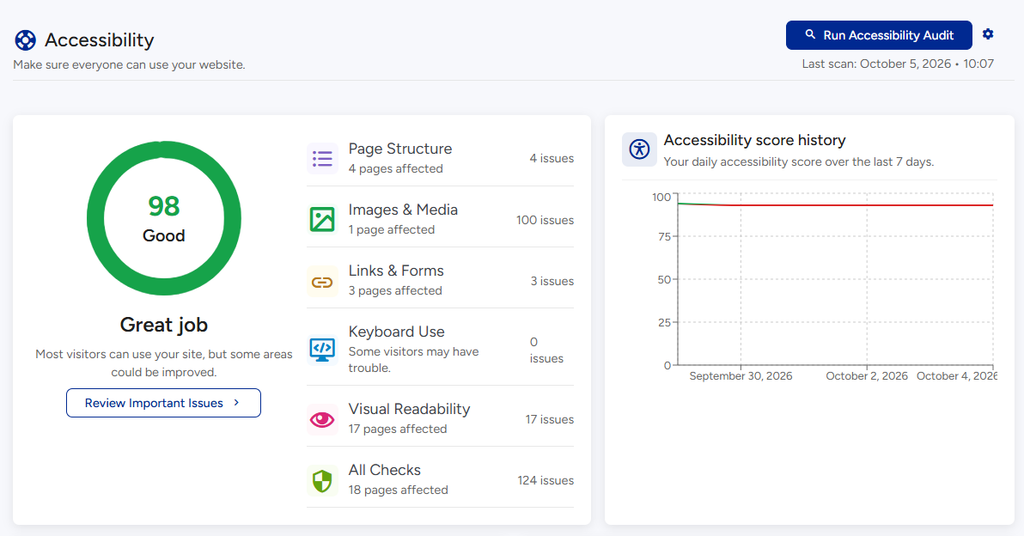
- Look at your score: Good, Needs Work or At Risk.
- Click Review Important Issues to see the most serious problems first.
- Fix each one, then run the audit again. Accessibility Score History shows whether you are improving.
The problems it finds #
| Group | What it means | Example fix |
|---|---|---|
| Page Structure | Headings are missing, repeated or in the wrong order | Use one main heading and put the rest in order |
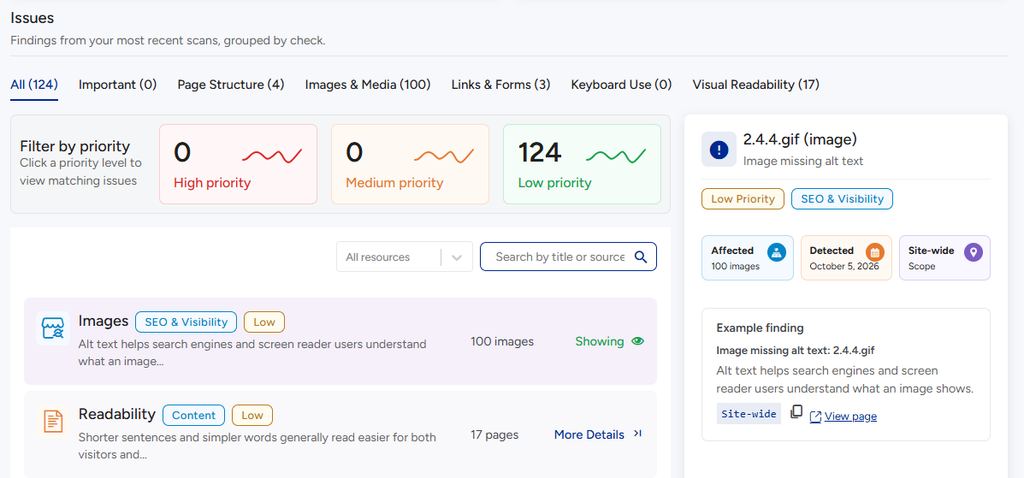
| Images & Media | Pictures have no text description, so a screen reader cannot describe them | Add “alt text” to the image in the Media Library |
| Links & Forms | Form fields have no label, or links say things like “Click here” | Label every field; make link text describe where it goes |
| Keyboard Use | Buttons and menus that a keyboard user cannot reach or understand | Make sure everything works with the Tab key |
| Visual Readability | Text that is hard to see | Increase contrast or size |
| All Checks | Everything combined |
Some checks need a person #
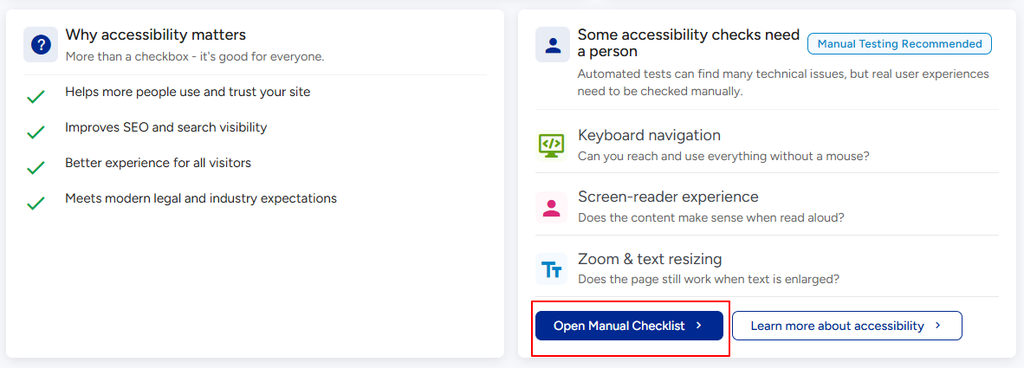
A tool cannot tell whether your page is truly pleasant to use. The Manual testing recommended panel lists three things to try yourself:
| Check | Try this |
|---|---|
| Keyboard navigation | Put the mouse aside. Can you reach and use everything with the keyboard? |
| Screen-reader experience | Does the content make sense when read aloud? |
| Zoom & text resizing | Make the text bigger. Does the page still work? |
Click Open Manual Checklist for step-by-step help.
Settings explained #
Go to Settings → Scanning → Accessibility.
| Setting | What it does | Why you might use it |
|---|---|---|
| Accessibility checks | Turns the accessibility scan on or off | Leave it on |
| Scan frequency | How often the scan runs by itself: Off, Hourly, Daily or Weekly | Weekly is enough for most sites; use daily if you publish often |
| WCAG level | How strict to be: A (basic), AA (the common target) or AAA (strictest) | Choose AA unless you have a specific requirement |
| WCAG scanner | Turns on additional standard-based checks | Gives a fuller picture |
| Check for generic, out-of-context link text | Reports links like “Click here” or “Read more” | Screen-reader users often hear links as a list, so each one must make sense alone |
Related #
Scheduled accessibility audits (Pro) #
Available with VuloPilot Pro. The audit can run automatically, on a schedule you choose under **Settings → Scanning → Accessibility**: hourly, daily, weekly, or off.

It keeps a history, so you can see whether your accessibility score is going up or down over time, and a dashboard shows the open issues. It runs separately from the security and automation schedules, so it keeps working if they are off.


