What VuloPilot does #
VuloPilot is a health-check and helper for your WordPress website. It scans your site, tells you what is wrong in plain language, gives you a score for each area, and helps you fix problems. Areas covered: search engine visibility (SEO), being found by AI assistants, site health, speed, accessibility, security and (with WooCommerce) your online store.
Why use it #
- One place to see what needs attention, instead of many tools.
- Scores show whether your site is getting better or worse over time.
- Nothing changes on your site unless you approve it.
- The core scans and reports work without any AI service.
About this page #
This page covers what you only need once: requirements, installing, your first scan, a map of the menu and the ideas every other guide uses. The other guides do not repeat it.
In this guide
- How it works
- Requirements
- Install and activate
- Your first scan
- Find your way around
- Ideas you will see everywhere
- Connect the optional services
- Where to go next
1. How it works #
The flow is always the same:
Scan -> Findings and scores -> Fix (yourself, or with an AI draft you approve) -> Scan again2. Requirements #
| Requirement | Minimum |
|---|---|
| WordPress | 6.7 or greater |
| PHP | 8.1 or greater |
| Who can use it | Site administrators |
Optional: a VuloCloud connection (for AI), a Google account (Search Console, Analytics), WooCommerce (Commerce page).
3. Install and activate #
Pick whichever method suits you.
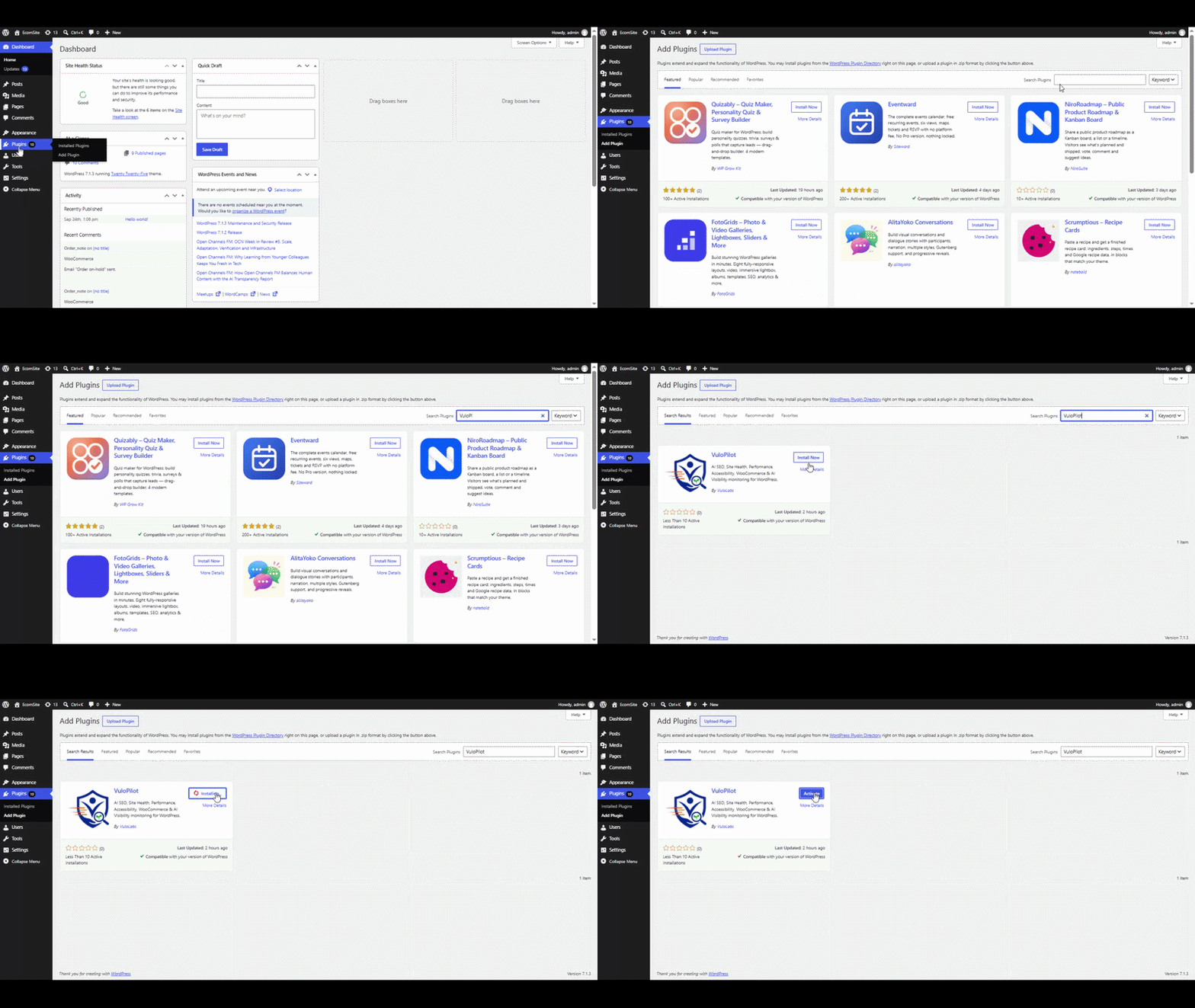
Method 1 – From the WordPress plugin directory #
- In WordPress go to Plugins → Add New Plugin.
- Search for VuloPilot.
- Click Install Now, then Activate.
Method 2 – Upload the zip file #
- Download the VuloPilot zip file.
- Go to Plugins → Add New Plugin → Upload Plugin.
- Choose the zip, click Install Now, then Activate Plugin.
Method 3 – Install on the server #
- Unzip the plugin on your computer.
- Upload the
vulopilotfolder to/wp-content/plugins/(FTP, SFTP or your host’s file manager). - Open Plugins in WordPress and click Activate under VuloPilot.
After activation a VuloPilot item appears in the admin menu. The main modules (SEO/GEO analysis, content, brand visibility, knowledge graph and AI Copilot) are switched on automatically.
4. Your first scan #
- Open VuloPilot → Dashboard.
- Click Run scan in the header. VuloPilot runs every scanner and refreshes all scores.
- Read the score cards. Open the areas that need work from the menu.
The Dashboard also has a Getting started card with links to docs and help.
5. Find your way around #
The top-level menu, in order:
| Menu item | What it is for | Guide |
|---|---|---|
| Dashboard | Overall health, needs-attention list, recent activity | DASHBOARD |
| AI Copilot | Chat with an assistant that knows your scan data | AI-COPILOT |
| SEO & Visibility | SEO score, robots.txt, redirects, 404s, AI visibility, schema | SEO, AI-VISIBILITY |
| Content | AI content tools and content quality | CONTENT |
| Performance | Speed score, slow pages, caching and asset checks | PERFORMANCE |
| Site Health | WordPress health checks and backups | SITE-HEALTH-AND-BACKUPS |
| Accessibility | WCAG-based checks | ACCESSIBILITY |
| Security | Malware, firewall, login protection, vulnerabilities | SECURITY |
| Commerce | WooCommerce store checks (only shown when WooCommerce is active) | COMMERCE |
| Automations | Scheduled scans and reports | AUTOMATIONS |
| Reports | Generated reports and the change history | REPORTS |
| Settings | Every setting, grouped by topic | SETTINGS |
Direct links look like wp-admin/admin.php?page=vulopilot#&tab=dashboard. Only the tab name after tab= changes.
6. Ideas you will see everywhere #
Findings. One specific problem on one page or item, with a severity (critical, high, medium, low). Findings stay open until a later scan no longer finds the problem.
Scores. Each area has a 0-100 score with a rating: Good, Needs Work or At Risk. Scores are calculated from your open findings and tracked over time, so you can see whether things are improving.
Scans. A scan re-checks your site. You can start one with a Run … scan button on the page you are in, or let an automation run it on a schedule.
AI suggestions and the approval flow. When VuloPilot proposes a change, nothing on your site changes until you approve it:
Propose (AI drafts a change)  →  Preview (see before and after)  →  Approve  or  Reject
                                                     Approved changes can be rolled back afterwards
Some pages have an Auto-applies switch. It lets VuloPilot prepare the fix itself, but the change still waits for your approval before it goes live.
Modules. Optional features can be turned on or off in Settings → Modules. If you turn a module off, its scanning stops, but findings already found are kept.
7. Connect the optional services #
None of these are required.
| Service | Why connect it | Where |
|---|---|---|
| VuloCloud | Enables AI features (suggestions, content generation, AI Copilot) and AI credits | Settings → Integrations → VuloCloud AI |
| Search Console, Analytics (GA4), AdSense data inside VuloPilot | Settings → Integrations → Google Services | |
| Google PageSpeed Insights | Real Mobile/Desktop speed scores | Settings → Integrations → PageSpeed Insights |
| IndexNow | Tell search engines about new content immediately | Settings → SEO → Instant Indexing |
Only the features you turn on contact outside services. The plugin readme’s External services section lists what each one receives.
8. Where to go next #
Recommended order for a new site:
- SETTINGS – fill in Business Information so scans and AI understand your business.
- SEO – titles, sitemap, robots.txt, redirects.
- SITE-HEALTH-AND-BACKUPS – turn on automatic backups.
- SECURITY – login protection and malware checks.
- AUTOMATIONS – schedule scans so the scores stay fresh.
Stuck? See TROUBLESHOOTING.
9. Pro: Install and activate the licence #
VuloPilot Pro needs the free VuloPilot plugin. Install and activate free first, then install the Pro plugin the same way (Plugins → Add New Plugin → Upload Plugin).
To turn on the Pro features:
- 1. Go to **VuloPilot → Settings → Licensing**.
- 2. Paste your licence key and click save.
- 3. Pro modules then appear under **Settings → Modules**. Turn on the ones you want.
- If the licence is no longer valid, Pro features stop working until it is renewed. Your data stays in place.


