What it does #
AI Copilot is a chat assistant that knows your website. You type a question in plain English, such as “Why is my traffic dropping?”, and it answers using your real scan results, not general advice. It can also write a blog post for you and save it as a draft.
Why it matters #
Scan results can be a long list of technical terms. The Copilot explains them in everyday language, tells you what to do first and saves you from searching the internet for answers.
New to VuloPilot? See GETTING-STARTED.
Before you start: connect to VuloCloud #
AI features need a connection to VuloCloud, VuloPilot’s AI service. Without it, everything else in VuloPilot still works.
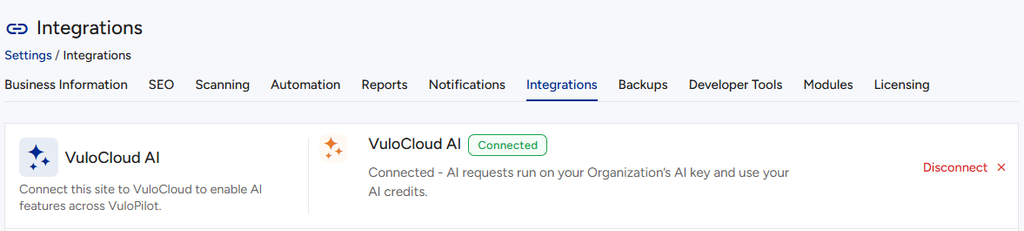
- Go to Settings → Integrations → VuloCloud AI.
- Click Connect to VuloCloud.
- Check the status:
- Connected – you are ready.
- Key needed – you are connected, but no AI key is set up. Add one in your VuloCloud account, or ask your agency.
- Not Connected – click Connect again.
On the Copilot page, Online in the header means it can answer; Offline means it cannot.
How to use it #
Ask a question #
- Open VuloPilot → AI Copilot.
- Type in the box (“Ask VuloPilot anything about your website…”) or click a suggested prompt, such as Improve my homepage, Why is traffic dropping?, Fix my Core Web Vitals, Find security issues or Make my site GEO ready.
- Read the answer. For SEO, speed and security questions, the Copilot gives advice. You make the change, or use the fix buttons elsewhere in VuloPilot.
Have it write a blog post #
Ask “Write a blog about …” and the Copilot writes it and saves it as a draft. It is never published for you, and you can Undo it.
Show it a file or picture #
Click Attach or Upload File to share a text or CSV file, or a picture (JPG, PNG, GIF or WebP). It is saved to your Media Library first so the assistant can read it. If you see “That file wasn’t uploaded”, use the Upload File button.
You stay in control #
- The Auto-applies switch lets VuloPilot prepare a fix by itself, but the change still waits for your approval before it goes live.
- Made a change you do not like? Use Undo. You will see “Change undone.”

What is on the side of the page #
| Panel | What it is for |
|---|---|
| Recent conversations | Your earlier chats. View all history opens the full list |
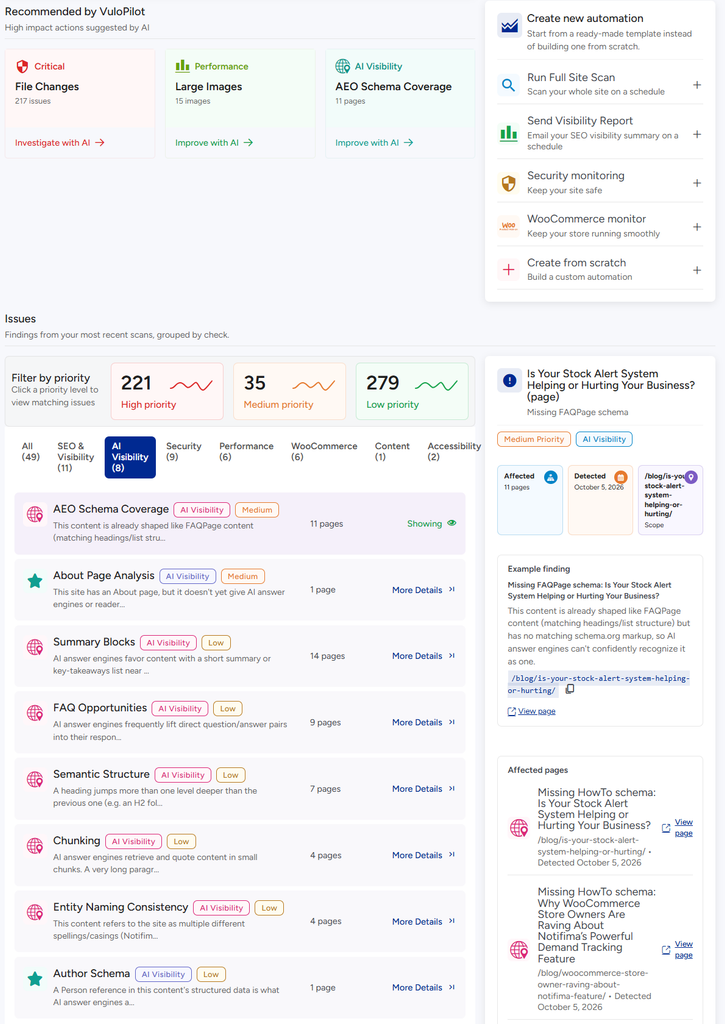
| Issues | Problems from your latest scans, with More Details |
| Recommended by VuloPilot | The most important suggested actions, with Investigate with AI or Improve with AI |
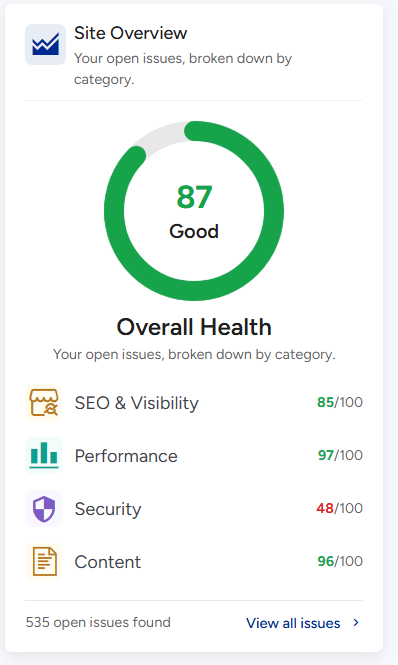
| Site Overview | Your score and open problems by category, with View all issues |
About AI credits #
Some AI actions use credits. If you run out, you will be asked to add more. To stop using AI, go to Settings → Integrations → VuloCloud AI and click Disconnect.
Related #
Copilot chat (Pro) #
Available with VuloPilot Pro. Chat with an AI assistant about your site. It can answer questions about your scores and problems, and draft changes for you to review. Nothing changes until you approve it.
Connect an AI assistant (MCP server, Pro) #
VuloPilot Pro can act as a server for AI tools that support the Model Context Protocol (MCP), such as Claude Desktop. Once connected, the AI tool can read your findings and reports, list your automations, and propose content changes such as titles, descriptions, FAQs and alt text. Every change still waits for your approval in VuloPilot.


