What it does #
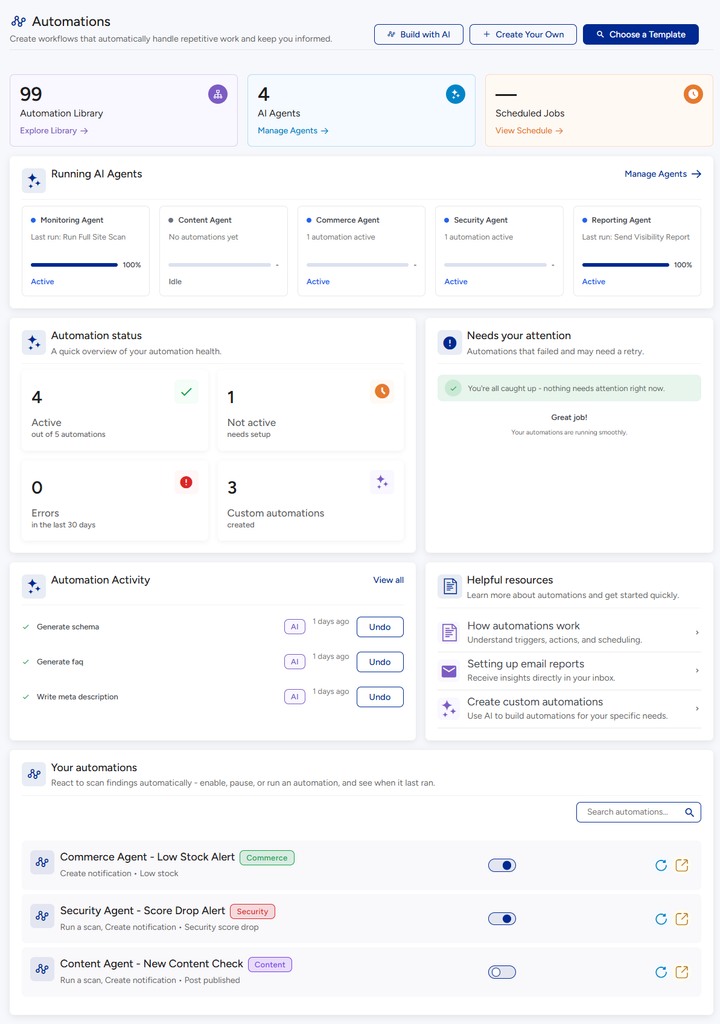
An automation is a task VuloPilot does on its own, on a schedule, so you do not have to remember. This plugin includes two ready-made ones:
| Automation | What it does |
|---|---|
| Run Full Site Scan | Checks your whole website and refreshes all your scores |
| Send Visibility Report | Emails you a summary of how visible your site is, what issues exist and what opportunities you have |
Why it matters #
Scores and problems change as your site changes. A scan that runs every week keeps the dashboard honest, and an emailed summary keeps you informed without logging in.
New to VuloPilot? See GETTING-STARTED.
How to use it #
- Open VuloPilot → Automations. Both automations are listed at the top.
- Switch on the one you want.
- Choose how often it runs: daily, weekly, monthly or manual (only when you start it).
- Save.

For the email report, first set where it goes: Settings → Notifications → Email Settings (Notification email, Sender name, Sender email), then click Send Test Email to make sure it arrives.

Are they working? #
| Card | What it tells you |
|---|---|
| Automation status | How many are Active, Not active, need setup, or have Errors |
| Needs your attention | Automations that failed. “Great job! Your automations are running smoothly.” means all is well |
The Dashboard’s Automation status card shows the same information.

If one fails #
The attention card says “The last scheduled run didn’t complete successfully.”
- Click Try Again.
- If it fails again, read the reason shown. Common reasons: no email recipient is set, or email delivery is not available on your site.
- Still stuck? See TROUBLESHOOTING.
Fine-tuning (optional) #
Go to Settings → Automation. The defaults are safe. Change them only if you have a reason.
| Setting | What it does | Why you might change it |
|---|---|---|
| Cooldown duration (minutes) | The minimum wait before VuloPilot acts on the same issue again | Prevents repeated actions in a short time |
| Maximum retry attempts (times) | How many times a failed task is retried before giving up (0 to 5) | Set 0 if you never want retries |
| Delay between retries (minutes) | How long to wait between tries | A longer wait helps with temporary problems, such as a busy server |

A note on timing #
Scheduled tasks run when someone visits your site, so on a very quiet site a run can start a little late. That is normal.
Related #
Workflow automation (Pro) #
Available with VuloPilot Pro with the Workflow Automation module on. It goes beyond the free automations:
– **Conditions:** run a rule only when every condition is true, for example “only when the score drops below 70”.
– **Retries:** if a step fails, it is tried again, and the number of retries is limited.
– **Workflow builder:** build a sequence of steps visually.
– **Logs:** every run is recorded with what happened at each step, so you can see why something did or didn’t run.