What it does #
Settings is where you control how VuloPilot behaves: what it checks, how it contacts you and what it connects to. Everything is under VuloPilot → Settings.
Why it matters #
The defaults work for most sites, but a few settings, especially Business Information and Notifications, make VuloPilot’s advice and alerts much more useful.
New to VuloPilot? See GETTING-STARTED.
Which settings to do first #
- Business Information – so AI understands your business.
- Notifications – so alerts reach the right person.
- Backups – so you can always recover.
- Integrations – only the services you want (AI, Google).
Saving #
Most panels save when you click Save. Some save each change immediately and show “Settings saved.”
All settings, in order #
| Group | What it is for |
|---|---|
| Business Information | Tell VuloPilot about your business |
| SEO | Titles, sitemap, instant indexing |
| Scanning | What each scan checks |
| Automation | Timing rules for automatic tasks |
| Reports | Default report format and period |
| Notifications | Who is emailed, and about what |
| Integrations | Connect AI, Google and other services |
| Backups | Automatic backups |
| Developer Tools | Cache, reset and uninstall choices |
| Modules | Turn features on or off |
Business Information #
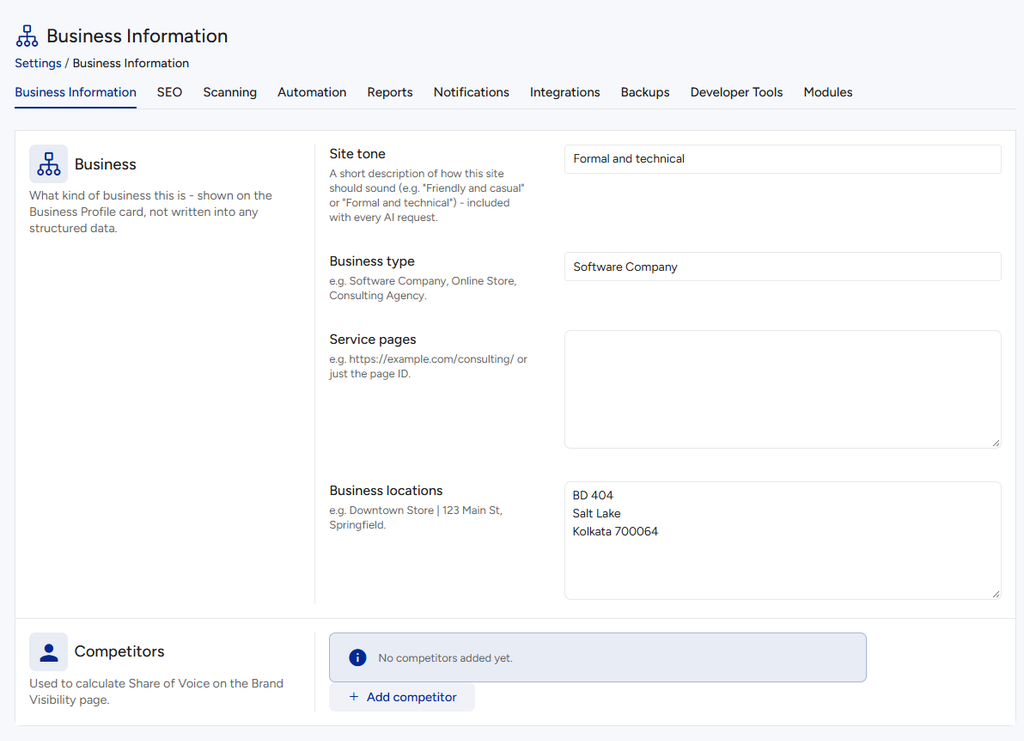
What it does. Describes your business so VuloPilot’s advice, writing and profile are accurate.
| Field | What to enter | Why |
|---|---|---|
| Site tone | A few words on how you sound, like “Friendly and casual” or “Formal and technical” | AI writing matches your voice |
| Business type | For example Software Company, Online Store, Consulting Agency | Used to describe you correctly |
| Service pages | Addresses or page numbers of your service pages | Helps VuloPilot see what you offer |
| Business locations | For example `Downtown Store | 123 Main St, Springfield` |
| Competitors | Other businesses in your field | Used to compare your visibility with theirs |
More: AI-VISIBILITY.
SEO #
Three panels: SEO Titles (how titles look), Sitemap (a list of your pages for search engines) and Instant Indexing (tell search engines about changes at once). Full explanation: SEO.
Scanning #
Choose what each scan looks for.
| Panel | It controls | Read more |
|---|---|---|
| SEO & Content | Title and description checks, images, links, readability, robots.txt, redirects, About page | SEO |
| AI Visibility | How clearly your content can be understood and quoted by AI | AI-VISIBILITY |
| Accessibility | How often to check, and how strict | ACCESSIBILITY |
| Security | Passwords, malware, login protection, firewall, alerts | SECURITY |
| WooCommerce | Product label check | COMMERCE |

Where offered, a Restore defaults action puts a panel back the way it was.
Automation #
Timing rules for scheduled tasks: cooldown, retries and wait between retries. Safe defaults are set. Read more: AUTOMATIONS.
Reports #
Default format (PDF, CSV or Both) and default period (7 days, 30 days, 90 days, 6 months). Read more: REPORTS.
Notifications #
What it does. Decides who VuloPilot emails and about what. Why it matters: you get warned about real problems, like a hacked file or a site that is down, without checking the dashboard.
Email Settings
| Field | What it does |
|---|---|
| Notification email | The address that receives alerts |
| Sender name / Sender email | The “from” name and address on alert emails |
| Send Test Email | Sends a test so you know delivery works |

Notification channels: Email and In-dashboard.
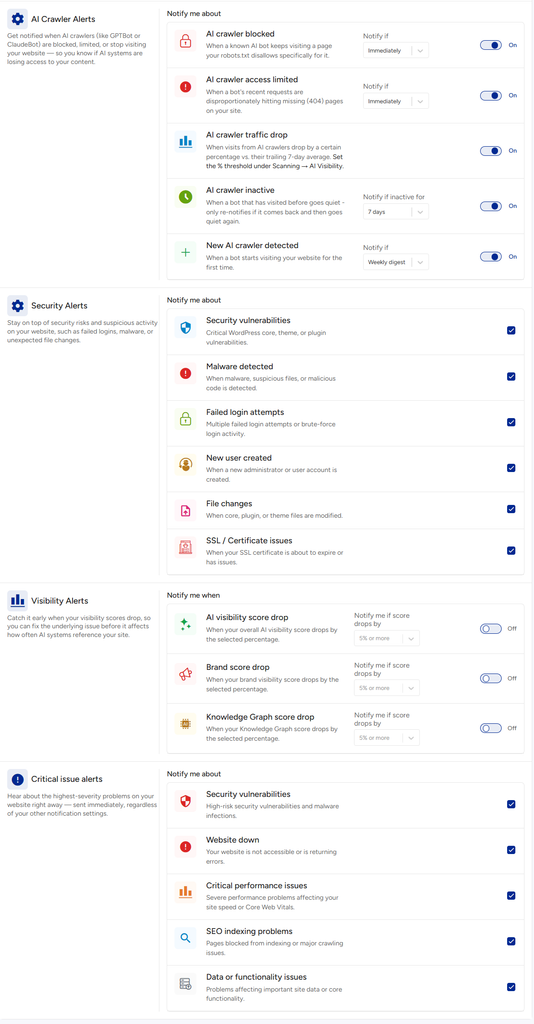
Alert groups. In each you choose what to be told about and how often: Immediately, Daily digest or Weekly digest.
| Group | You can be told when… |
|---|---|
| AI Crawler Alerts | An AI robot is blocked, mostly hits missing pages, visits drop, stops visiting (3, 7, 14 or 30 days) or a new robot appears |
| Security Alerts | Vulnerabilities, malware, failed logins, new users, file changes or certificate problems appear |
| Visibility Alerts | Your AI visibility, brand or knowledge graph score drops by an amount you choose |
| Critical issue alerts | Vulnerabilities, your website goes down, performance is critical, search indexing breaks or something stops working |
Tip: use Daily digest for low-urgency groups so your inbox is not flooded.
Integrations #
Connect VuloPilot to other services. Connect only what you need.
| Panel | What it does | Why connect it |
|---|---|---|
| VuloCloud AI | Connects your site to VuloCloud. Status: Connected, Not Connected or Key needed | Turns on AI features |
| Google Services | Connects one Google account for Search Console, Analytics and AdSense. VuloPilot only reads the data and keeps it on your site | Shows real search and visitor data inside VuloPilot |
| Tag Manager | Add your Google Tag Manager container ID (GTM-XXXXXXX) | Runs your tracking tags |
| PageSpeed Insights | Add a Google API key | Real speed scores |
| Webmaster Tools | Paste verification codes from Google, Bing, Pinterest, Baidu, Yandex or Norton, or your own meta tags | Proves you own the site |

More: AI-COPILOT, SEO, PERFORMANCE.
Backups #
Turn on automatic backups, choose Daily or Weekly, and choose how many to keep. Read more: SITE-HEALTH-AND-BACKUPS.
Developer Tools #
Maintenance options. Most people never need them.
| Item | What it does | When to use it |
|---|---|---|
| Anonymous usage data | Stores your choice about sharing anonymous usage information (nothing is collected yet) | If you want to say yes or no in advance |
| Clear cache | Clears VuloPilot’s saved results; they rebuild by themselves | If something looks out of date |
| Reset settings | Puts every setting back to its default. Reports and history stay | If you want a fresh start |
| Keep VuloPilot data after uninstall | Keep data (settings, history and reports remain if you reinstall) or Delete everything | Decide before you remove the plugin |

Modules #
What it does. Modules are optional features you can switch on or off, grouped as AI Visibility, Brand Visibility, SEO & Content, Site Health, Automations & AI and Commerce.
Why it matters. Turning off features you do not use keeps the dashboard focused. Turning a module off stops its scanning; findings already found are kept. The main modules are on by default.


