This page has two parts: Site Health, which checks that WordPress itself is in good shape, and Backups, which saves a copy of your site so you can recover from a mistake or a hack.
Site Health #
What it does #
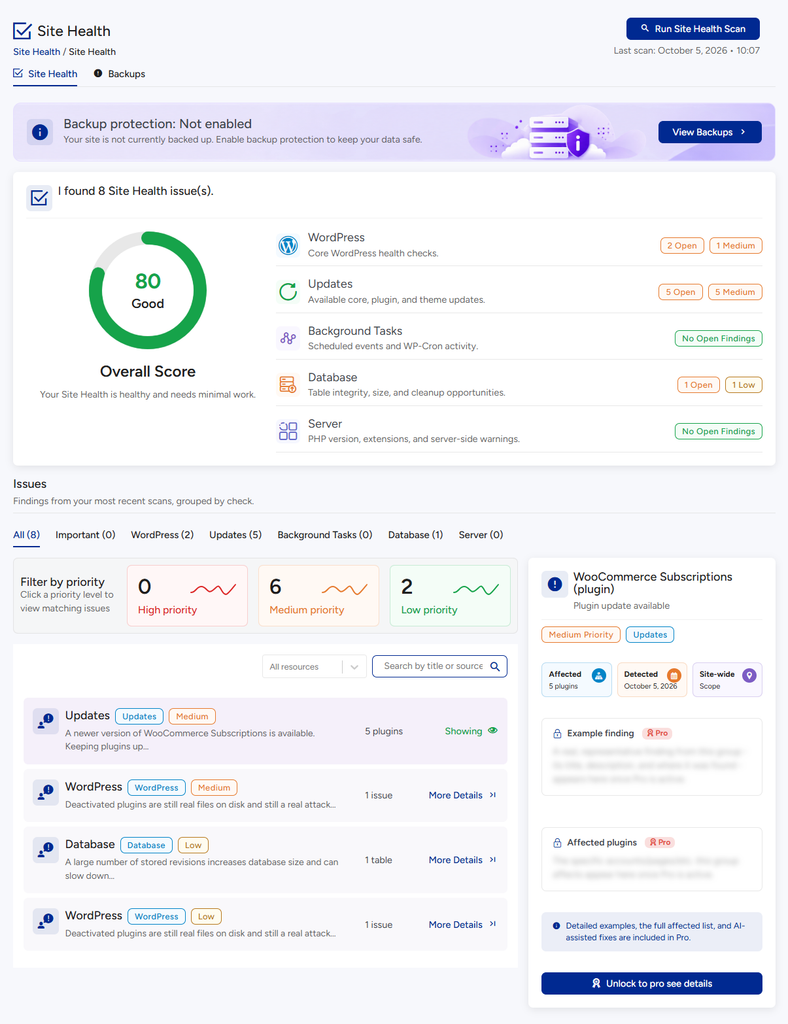
Site Health runs a checkup of the technical side of your site: is WordPress up to date, is the database tidy, are scheduled tasks running, is the server set up well.
Why it matters #
Out-of-date software is a top cause of hacked sites, and hidden technical problems slowly make a site slower or unreliable. A regular checkup catches them while they are small.
How to use it #
- Open VuloPilot → Site Health.
- Click Run Site Health Scan.
- Read each finding, follow its advice and scan again.
| Group | What it checks, in plain words |
|---|---|
| WordPress | Is WordPress up to date, using a secure connection (HTTPS), and reachable by other tools? |
| Updates | Are there waiting updates for WordPress, plugins or themes? |
| Background Tasks | Are the site’s automatic jobs running on time? Late jobs usually mean scheduled tasks are stuck |
| Database | Is the database healthy and not bloated with clutter? |
| Server | Is the hosting set up well for WordPress? |
It also checks that your site is online, looks for error messages from PHP and points out plugins that are heavy or unused.
Plugin Overlap. Lists plugins that repeat something VuloPilot already does. Removing extras makes your site lighter.
Backups #
What it does #
A backup is a saved copy of your database (your posts, pages and settings) and your files. VuloPilot can make one on demand or on a schedule, and restore your site from any of them.
Why it matters #
Backups are your undo button for the worst days: a failed update, a mistake, a hack. Without one, some of these problems cannot be undone.
Make a backup now #
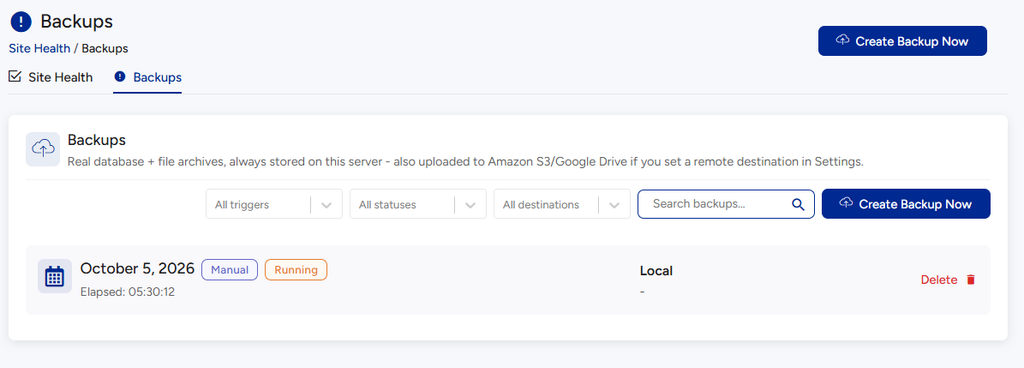
- Open the Backups tab, or click Create Backup Now.
- It starts in the background and appears in the list. Its status goes Queued → Running → Completed (or Failed).
Backups are stored on your own server. Manual backups always work, even if automatic backups are off.
Turn on automatic backups #
Go to Settings → Backups.
| Setting | What it does | Why you might use it |
|---|---|---|
| Enable automatic backups | Makes a backup on a schedule | You never have to remember |
| Backup frequency | Daily or Weekly | Daily for busy sites that change often; weekly for quiet sites |
| Backups to keep | How many completed backups to keep. The oldest are deleted after each new one | Stops backups filling your disk |
Download, restore or delete #
Each backup in the list shows how it was made (Manual, Scheduled or Pre-restore safety snapshot), when, and its status. You can search and filter the list.
| Action | What it does |
|---|---|
| Download | Saves the backup file to your computer |
| Restore | Puts your site back the way it was at that backup. This replaces your current site. VuloPilot first saves a safety snapshot of the site as it is now |
| Delete | Removes the backup |
To restore:
- Click Restore on the backup you want.
- Read the warning and confirm.
- Wait for “Restore complete.”
If a restore fails, you see “Restore failed – the site was not changed.” Nothing is lost; fix the problem shown and try again.
A banner on the Security and Site Health pages tells you whether backup protection is on.
Related #
- SECURITY
- PERFORMANCE
- Amazon S3 (or an S3-compatible service)
- Google Drive
- SETTINGS
- TROUBLESHOOTING
Cloud storage for backups (Pro) #
Available with VuloPilot Pro. Backups are always saved on your server first. With Pro you can also copy each finished backup to:
Enter the credentials under Settings → Backups → Cloud storage. Credentials are stored encrypted. If an upload fails, the backup is still on your server.


