What it does #
Performance measures how fast your website loads for real visitors. It gives your site a speed score, shows which pages are slow, and tells you in plain terms what is slowing them down (for example, a huge image or a script that blocks the page from showing).
Think of it as a speedometer for your website, plus a list of what to fix first.
Why it matters #
- Visitors leave slow sites. Many people close a page that takes more than a few seconds to appear.
- Google uses speed as a ranking signal. A faster site has a better chance of showing up higher in search results.
- Speed affects sales and sign-ups. Faster pages usually mean more people finish what they came to do.
Before you start #
Speed scores come from Google’s free PageSpeed Insights service. To see real scores for both phones and desktop computers, connect it once:
- Go to VuloPilot → Settings → Integrations → PageSpeed Insights.
- Paste your Google API key and click Connect.
- The status changes to Connected.
VuloPilot only reads speed information from Google. It never changes your site through this connection.
New to VuloPilot? See GETTING-STARTED for installation and the first scan.
How to use it #
- Open VuloPilot → Performance.
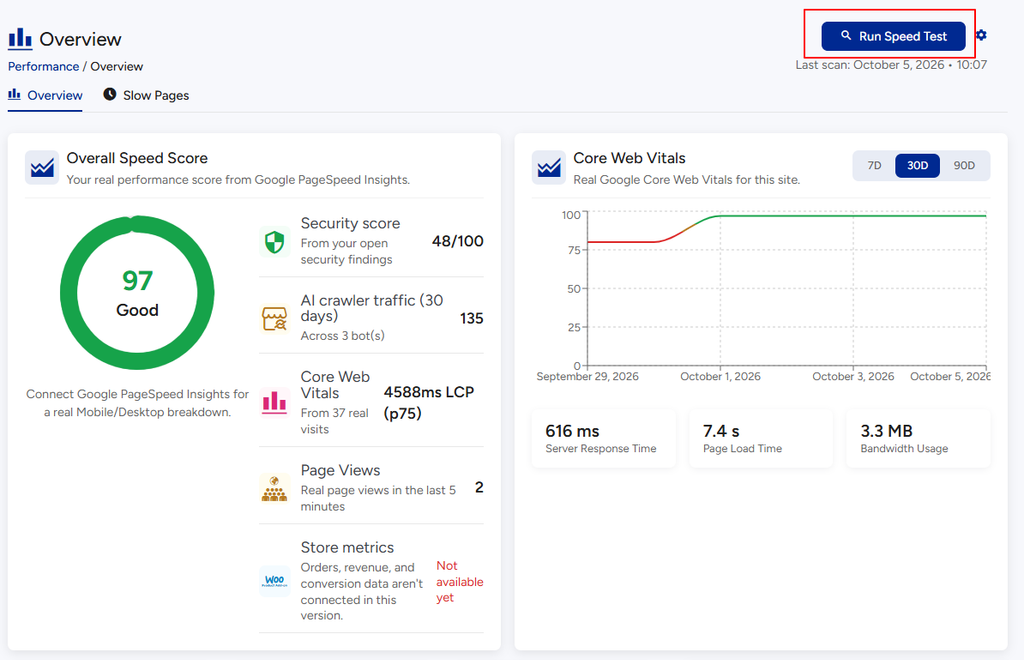
- Click Run Speed Test. It says “Scanning…” for a short time.
- Read the Overview tab (see below).
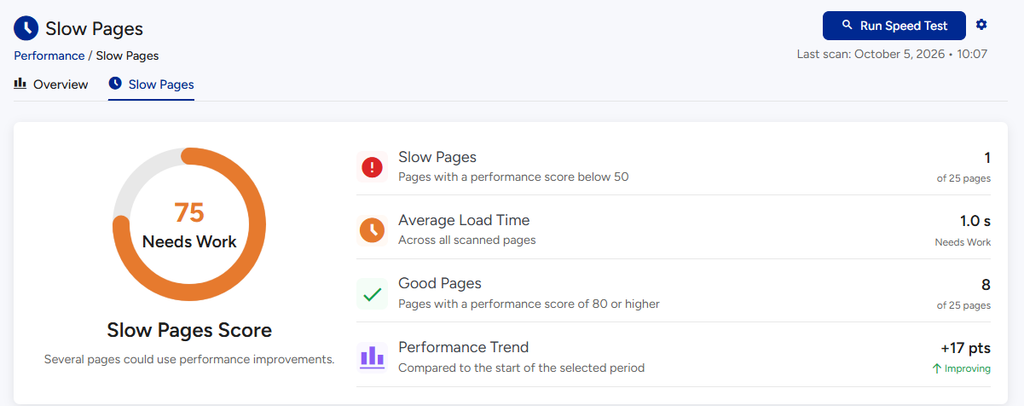
- Open the Slow Pages tab to see which pages need help.
- Fix the biggest problem first, then click Scan Again to see if your score improved.
What you see on the Overview tab #
| Card | In plain words |
|---|---|
| Overall Speed Score | One number out of 100 for how fast your site is. It is rated Good, Needs Work or At Risk. It also tells you if your phone version is slower than your desktop version |
| Core Web Vitals | Google’s three main tests of a good visit: how quickly the main content appears, how quickly the page reacts when someone taps or clicks, and whether things jump around while loading |
| Biggest Speed Opportunity | The one change that would help the most. Click View Details or View Affected Pages |
| AI Speed Assistant | A short summary of your speed problems written in everyday language |
| PHP acceleration | Whether your server has a built-in speed booster (called OPcache) turned on |
| Real-time monitoring | How quickly your server answers, how long pages take to load and how much data is used |
| Speed history | A chart showing whether your speed is getting better over time |
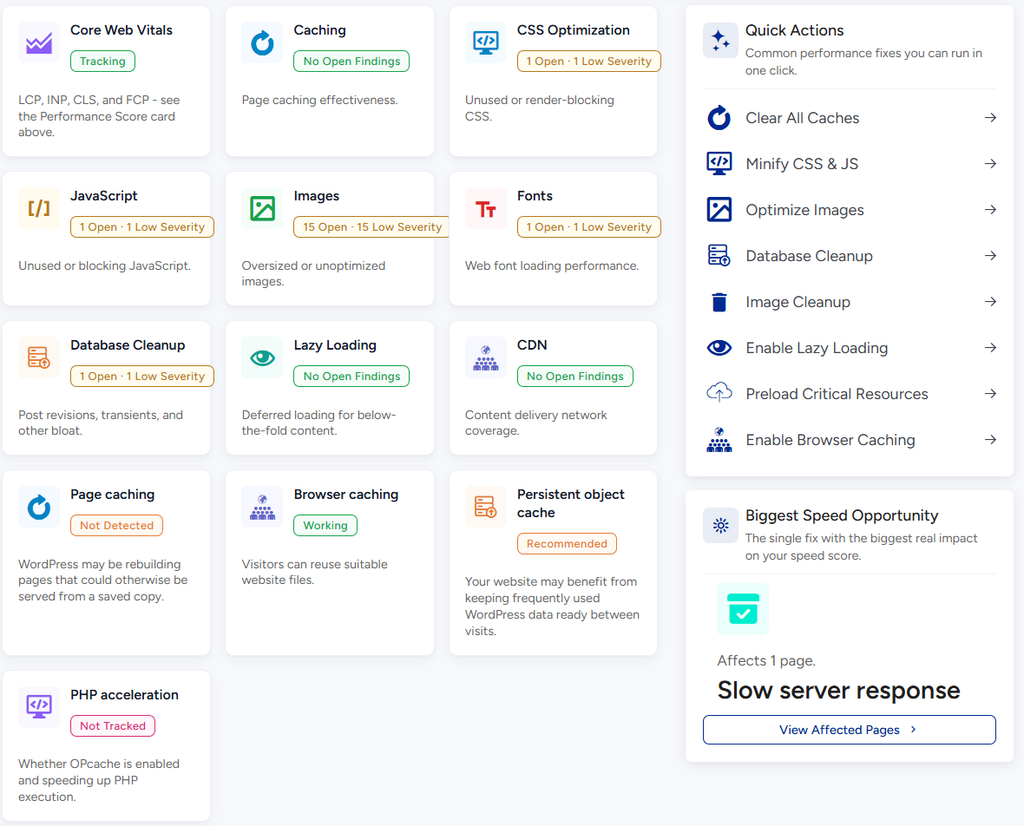
Below those, the problems are sorted into groups so you can tackle one topic at a time:
| Group | What it looks at | Common fix |
|---|---|---|
| Server & Response Time | How fast your homepage answers | Better hosting or removing plugins that slow every page |
| Images & Media | Photos that are bigger than they need to be | Compress or resize images |
| Code Optimization | Scripts and styles that delay the page | Remove or delay unneeded code |
| Caching & Delivery | Whether pages are saved for quick reuse | Turn on a cache; use a content delivery network |
| Loading & Fonts | Content far down the page and web fonts | Load them later, only when needed |

Find slow pages #
- Open the Slow Pages tab.
- Each page is listed with its type (Homepage, Post, Product and so on), a score and its Load Time in seconds.
- Click a page to see exactly what is slowing it down.
The summary at the top tells you how your site is doing overall, from “Your pages are loading excellently” to “Many of your pages need performance attention.”

Quick fixes #
Quick Actions and Recommended Fixes offer one-click shortcuts for common jobs, such as Clear All Caches, Minify CSS & JS, Optimize Images, Database Cleanup, Preload Critical Resources and Enable Browser Caching. Recommended Fixes suggests the ones that fit your slowest pages.
For larger problems, such as one oversized image, open the finding, follow its advice, then run the test again.
Good habits #
- Run a speed test after every big change (new plugin, new theme, many new images).
- Fix mobile first. Most visitors use phones.
- Check Speed history monthly to be sure you are not slowly getting worse.
Related #
- SITE-HEALTH-AND-BACKUPS – database size and background tasks
- AUTOMATIONS – run tests on a schedule
- SETTINGS – where the Google key lives


